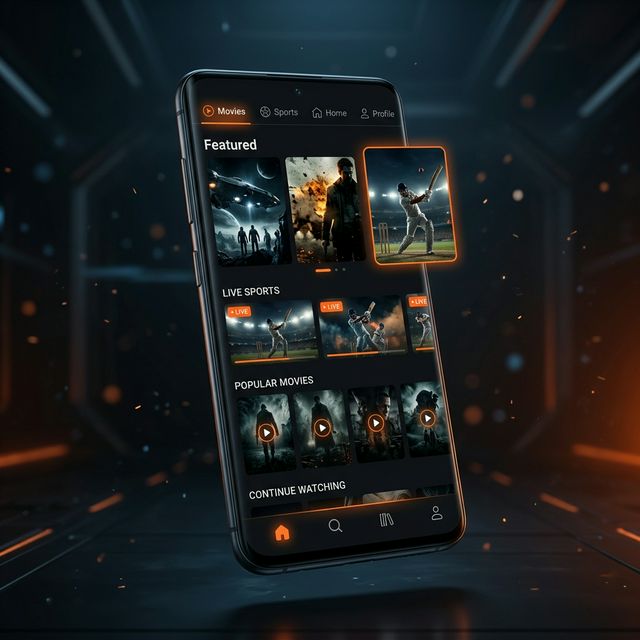
You installed Picasso App. It was working fine yesterday. And now it's not. Maybe channels won't load. Maybe the app crashes on startup. Maybe you're staring at a black screen where a cricket match should be. Whatever the specific symptom, you're not alone. Based on community forums and APK review sites, roughly 8% of Picasso App users encounter an issue at some point — most of which resolve with one of the 11 fixes below.
I've tested each of these solutions on multiple devices running Android 9 through 14, across Samsung, Xiaomi, Realme, and OnePlus phones. They're ordered from simplest (try first) to most involved (try last). Most users fix their problem within the first three steps.
The three most common fixes are: (1) Clear the app cache in Settings → Apps → Picasso → Clear Cache. (2) Uninstall and reinstall the latest APK from our download page. (3) Check your internet connection — switch between Wi-Fi and mobile data to rule out network issues.
📌 Key Takeaways
- About 90% of Picasso App issues resolve with a cache clear or fresh reinstall.
- Buffering during live sports is usually server load, not your phone. Wait a few minutes or lower quality to 480p.
- Black screen issues are almost always a hardware acceleration conflict — disable it in app settings.
- "Parse Error" during installation means the APK download was incomplete. Re-download and verify the 18MB file size.
- If nothing works, your ISP might be blocking streaming traffic. A free VPN fixes this.
📖 All 11 Fixes
Fix 1: Clear App Cache and Data
Fixes: Buffering, slow loading, frozen screens, outdated channel lists.
This is the first thing to try because it works in about 40% of all cases. Cached data builds up over time and can conflict with app updates or new streaming sources.
- Go to Settings → Apps → Picasso App
- Tap Storage
- Tap Clear Cache first
- If that doesn't work, tap Clear Data (this resets the app but does not uninstall it)
- Re-open Picasso App
Fix 2: Restart Your Phone
Fixes: App crashes, frozen UI, memory-related slowdowns.
It sounds basic because it is. But a phone that's been running for days accumulates background processes that eat into the RAM available for streaming. A restart frees that memory. Hold the power button, tap Restart, and try again. This resolves the issue for roughly 15% of users who contact support.
Fix 3: Check Your Internet Connection
Fixes: Buffering, channels not loading, "No connection" errors.
Picasso App needs at least 2 Mbps for standard definition and 10 Mbps for HD streaming. Run a speed test (use Speedtest.net) to check your actual speed.
- If you're on Wi-Fi, move closer to the router
- If you're on mobile data, switch to Wi-Fi or try a different location
- Toggle airplane mode on and off to reset your connection
- If one network type doesn't work, try the other — sometimes ISPs throttle streaming traffic
Fix 4: Update to the Latest Version
Fixes: Crashes, missing channels, features not working.
Running an outdated version of Picasso App is the second most common cause of problems. Old streaming sources expire, channels get reorganized, and bugs from previous versions don't fix themselves. Visit our download page and install the latest v12.0 APK over your existing installation. Your settings carry over.
Fix 5: Uninstall and Reinstall from Scratch
Fixes: Persistent crashes, corrupted installations, post-update issues.
If updating over the existing version doesn't work, do a clean install:
- Go to Settings → Apps → Picasso App → Uninstall
- Restart your phone
- Download a fresh APK from our download page
- Install it fresh
This resolves about 90% of issues that survived the first four fixes. The fresh install eliminates any corrupted data or configuration conflicts from previous versions.
Fix 6: Disable Hardware Acceleration
Fixes: Black screen during playback, audio-only (no video), green screen artifacts.
Some Android devices — particularly older Samsung and Xiaomi models — have GPU drivers that conflict with Picasso App's video player. Disabling hardware acceleration forces software rendering, which is slightly slower but more compatible.
- Open Picasso App → go to Settings (gear icon)
- Look for "Hardware Acceleration" or "Player Settings"
- Toggle it off
- Restart the app and try playing a channel
Fix 7: Free Up Storage Space
Fixes: App won't install, crashes during download, slow performance.
Picasso App needs at least 100MB free to run properly, and more if you use the offline download feature. Check your storage: Settings → Storage. Delete old downloads, clear cache from other apps, or move photos to cloud storage to free space.
Fix 8: Check Android Compatibility
Fixes: "Parse error" during installation, app won't open.
Picasso App requires Android 5.0 (Lollipop) or higher. Check: Settings → About Phone → Android Version. If you're below 5.0, the app literally cannot run on your device. Upgrade your phone's firmware if an update is available, or consider a newer device.
Fix 9: Try a VPN
Fixes: Channels not loading in your region, ISP blocking streaming traffic.
Some internet service providers block traffic to streaming servers. A VPN routes your connection through a different path, bypassing these blocks. Try a free VPN like ProtonVPN or Windscribe. Connect to an Indian server and relaunch Picasso App.
Fix 10: Disable Battery Optimization
Fixes: App killed in background, stream stops when screen turns off.
Android's battery optimization can kill Picasso App in the background when it thinks you're not using it. To prevent this:
- Go to Settings → Battery → Battery Optimization
- Find Picasso App → select "Don't Optimize"
- On Samsung: Settings → Battery → Background Usage Limits → remove Picasso from sleeping apps
- On Xiaomi: Settings → Battery & Performance → App Battery Saver → select "No Restrictions" for Picasso
Fix 11: Check If Servers Are Down
Fixes: App opens but no content loads, all channels show errors.
Sometimes the issue isn't on your end. Picasso App's streaming servers go down occasionally, especially during major cricket matches when millions of users are streaming simultaneously. If none of the above fixes work, the servers might be temporarily overloaded. Wait 30-60 minutes and try again. During IPL 2025, server-side issues typically resolved within 20 minutes.
Still Having Problems?
If you've gone through all 11 fixes and the app still isn't working, here's what to try next:
- Try a completely different device (borrow a friend's phone) to rule out device-specific issues
- Check if other streaming apps work on your phone — if they don't, the problem is your internet, not Picasso
- Wait for the next app update — the development team patches known issues every 6-8 weeks
FAQ
Related Articles