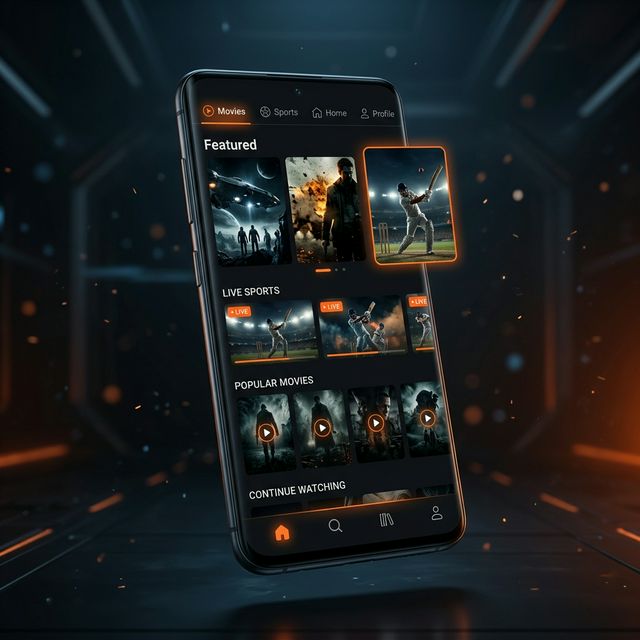
Streaming on a 6-inch phone screen is fine when you're on the bus. But when you're at home and want to watch a cricket match or binge a web series, doing it on your PC's larger screen with proper speakers makes the experience significantly better. Picasso App is built for Android, but you can run it on any Windows or Mac computer through an Android emulator. The whole setup takes about 10 minutes, and once it's running, the app works exactly as it does on your phone — same channels, same quality, same features.
This guide covers two methods: BlueStacks 5 (the most popular Android emulator with 500+ million users) and MEmu Play (a lightweight alternative that works better on older hardware). Pick whichever matches your computer specs.
Download BlueStacks 5 → Install it → Download Picasso APK → Drag the APK into BlueStacks → Done. Takes 10 minutes total.
PC System Requirements
| Component | Minimum (SD) | Recommended (HD) |
|---|---|---|
| Processor | Intel i3 / AMD Ryzen 3 | Intel i5 / AMD Ryzen 5 |
| RAM | 4GB | 8GB+ |
| Storage | 5GB free | 10GB+ |
| GPU | Integrated (Intel HD) | Dedicated (NVIDIA/AMD) |
| Windows | 7 SP1 | 10 or 11 |
| macOS | 10.12 Sierra | 12 Monterey+ |
| Internet | 5 Mbps | 10 Mbps+ |
Method 1: BlueStacks 5 (Recommended)
BlueStacks is the gold standard of Android emulators. Version 5 is specifically optimized for app performance and uses less RAM than previous versions. Here's the full setup:
Download BlueStacks 5
Go to bluestacks.com and download the installer. It's about 300MB. Run it and follow the on-screen prompts. Installation takes 3-5 minutes.
Complete Initial Setup
When BlueStacks opens for the first time, it may ask you to sign into a Google account. You can skip this step — it's not required for Picasso App since there's no Play Store download involved.
Download Picasso APK
Open your regular web browser (not the BlueStacks browser) and download the Picasso APK from this site. Save it somewhere easy to find, like your Desktop.
Install APK in BlueStacks
Drag the downloaded APK file and drop it onto the BlueStacks window. Alternatively, click the "Install APK" button in the BlueStacks sidebar and browse to the file. Installation takes about 10 seconds.
Launch Picasso App
The Picasso App icon will appear on the BlueStacks home screen. Click it to launch. You'll see the same interface as on Android — browse channels, pick content, and start streaming on your large monitor.
Method 2: MEmu Play (For Older PCs)
MEmu Play uses fewer system resources than BlueStacks, making it ideal for older or budget computers. The setup is similar:
- Download MEmu from memuplay.com
- Install it (takes 3-5 minutes)
- Download the Picasso APK
- Drag the APK into the MEmu window or use File → Install APK
- Click the Picasso App icon to launch
Optimizing Performance on PC
To get the best streaming experience on your computer:
- Enable Virtualization Technology (VT) — This is a BIOS setting that dramatically improves emulator performance. Search "enable VT in BIOS" + your motherboard brand for instructions.
- Allocate more RAM to the emulator — In BlueStacks settings → Performance → set RAM to 4GB if your PC has 8GB or more
- Set display to landscape mode — The streaming experience is better in landscape
- Close other programs — Streaming through an emulator uses more resources than native apps
- Use wired internet — Ethernet is more stable than Wi-Fi for streaming on PC
BlueStacks vs MEmu — Which Should You Choose?
| Feature | BlueStacks 5 | MEmu Play |
|---|---|---|
| RAM Usage | 1.5-2GB | 1-1.5GB |
| Disk Space | 5GB | 3GB |
| Performance | Better on modern PCs | Better on older PCs |
| Android Version | Android 11 Pie | Android 9 Pie |
| Keyboard Mapping | Built-in | Built-in |
| Multi-Instance | Yes | Yes |
Bottom line: Use BlueStacks 5 if your PC was made in the last 5 years. Use MEmu if you're on older hardware or have less than 6GB RAM.
Troubleshooting PC Installation
| Issue | Fix |
|---|---|
| BlueStacks won't install | Enable VT in your BIOS. Update your graphics drivers. |
| App installs but won't open | Increase RAM allocation in emulator settings to 4GB. |
| Streaming is laggy | Close other programs. Switch from Wi-Fi to ethernet. |
| Black screen in emulator | Update GPU drivers. Switch rendering mode (OpenGL → DirectX). |
FAQ