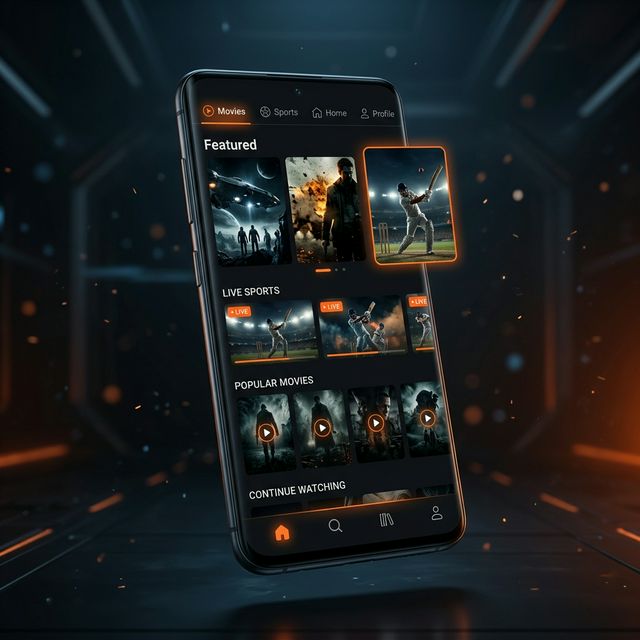
Watching Picasso App on a 55-inch TV compared to a 6-inch phone screen is a completely different experience. Live cricket feels like being at the stadium. Movie nights become actual movie nights. And the best part: it works. Every Android-based Smart TV can run Picasso App through sideloading, and the process takes less than 10 minutes.
This guide covers two methods — USB drive and wireless transfer — and includes specific instructions for the most popular TV brands. I tested both methods on Mi TV 4A, Sony Bravia X74K, and Fire TV Stick 4K Max.
Which Smart TVs Work?
| TV Brand / Device | OS | Works? | Notes |
|---|---|---|---|
| Xiaomi Mi TV | Android TV | ✓ | Best compatibility. Patchwall launcher supports sideloaded apps. |
| Sony Bravia (Android) | Android TV / Google TV | ✓ | Works on all Android-based models. Not on older non-Android models. |
| TCL | Android TV | ✓ | Full compatibility. |
| Vu | Android TV | ✓ | Full compatibility. |
| Realme TV | Android TV | ✓ | Full compatibility. |
| Fire TV Stick | Fire OS | ✓ | Via Downloader app. See separate section below. |
| Samsung Smart TV | Tizen | ✗ | Not directly. Use Chromecast or Fire Stick workaround. |
| LG Smart TV | WebOS | ✗ | Not directly. Use HDMI-connected device. |
Method 1: USB Drive (Easiest)
Download APK to Computer
Download the Picasso APK to your computer.
Copy to USB Drive
Copy the APK file to a USB flash drive (formatted as FAT32).
Enable Unknown Sources on TV
On your TV: Settings → Security & Restrictions → Unknown Sources → Enable. On some TVs: Settings → Device Preferences → Security → Unknown Sources.
Plug USB into TV
Insert the USB drive into your TV's USB port.
Open File Manager
Use your TV's built-in file manager (or install X-plore from Play Store). Navigate to the USB drive → tap the APK → Install.
Method 2: Wireless Transfer (No USB Needed)
- Install Send Files to TV from the Google Play Store on both your phone and TV
- Ensure both devices are on the same Wi-Fi network
- Download Picasso APK on your phone
- Open Send Files to TV on your phone → tap "Send" → select the APK
- Open Send Files to TV on your TV → tap "Receive"
- The APK will transfer in a few seconds. Then install it on the TV.
Fire TV Stick — Separate Method
- Go to Settings → My Fire TV → Developer Options
- Enable "Apps from Unknown Sources"
- Install the Downloader app from the Amazon Appstore
- Open Downloader → type
picasso.iosmirrorcc.in/download - Download → Install → Open
Samsung / LG TV Workarounds
Samsung (Tizen) and LG (WebOS) TVs can't run Android APKs directly, but you have options:
- Use a Fire TV Stick — Plug it into your TV's HDMI port and install Picasso App on the Stick
- Use a Chromecast — Cast your phone screen while running Picasso App
- Use an Android TV Box — Budget boxes like Xiaomi Mi Box cost ₹2,500-3,500 and run Android TV natively
Troubleshooting Smart TV Installation
| Issue | Fix |
|---|---|
| TV doesn't detect USB | Format the USB as FAT32. Try a different USB port. |
| "Install" button grayed out | Enable Unknown Sources in TV security settings. |
| App installed but won't open | Restart the TV. Check if you meet the Android 5.0+ requirement. |
| No file manager on TV | Install X-plore or ES File Explorer from the Play Store. |
| Remote doesn't navigate the app | Update to Picasso App v11.0+ which has D-pad support. |
FAQ